Correcting Records During Quality Control
How to use these instructions:
This page lists the specific steps for finding and correcting errors in metadata records
Note that each editor only has access to specific parts of the Digital Collections, so not all examples may apply
Although this page will include some examples of common errors, editors may need to identify specific types of problems based on knowledge of a particular collection and on relevant documentation:
Step 1: Identify Issues
Use the system tools to find problems in metadata, such as mis-formatted or missing values
Note that tools will generally not say that something specific is wrong, they just organize information in ways that may help editors identify an issue
For each of the tool sections on this page, there is one specific example; use the documentation about the individual tools for more suggestions
Dashboard
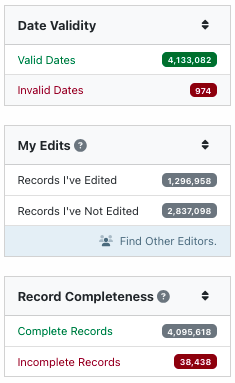
Some Dashboard filters can identify problems such as “incomplete” records or records containing invalid dates
Count
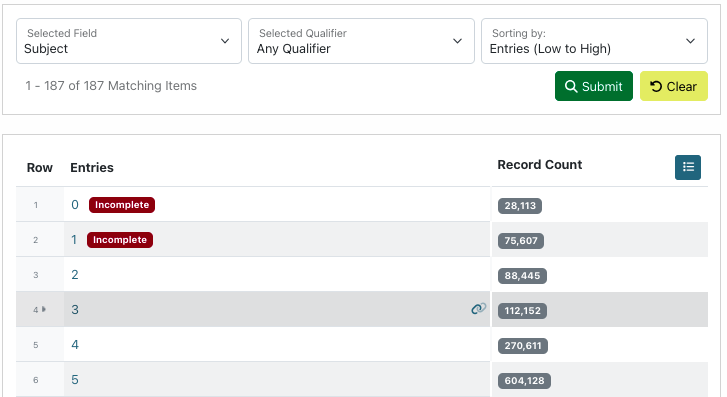
The count tool helps to find missing or extra entries, such as:
Too few subjects (or no UNTL-BS terms in Portal records)
Multiple photographers for a single photographer (i.e., possible placeholder values left in a record)
No creation dates for items in a collection that have known dates
Facet
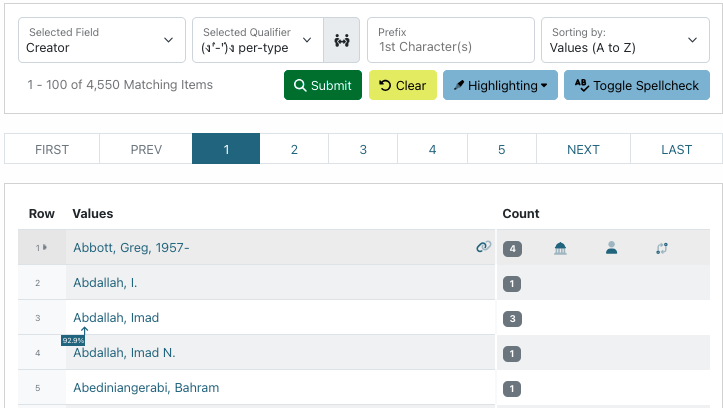
The facet tool helps with finding typos or similar values that may be normalized
Cluster
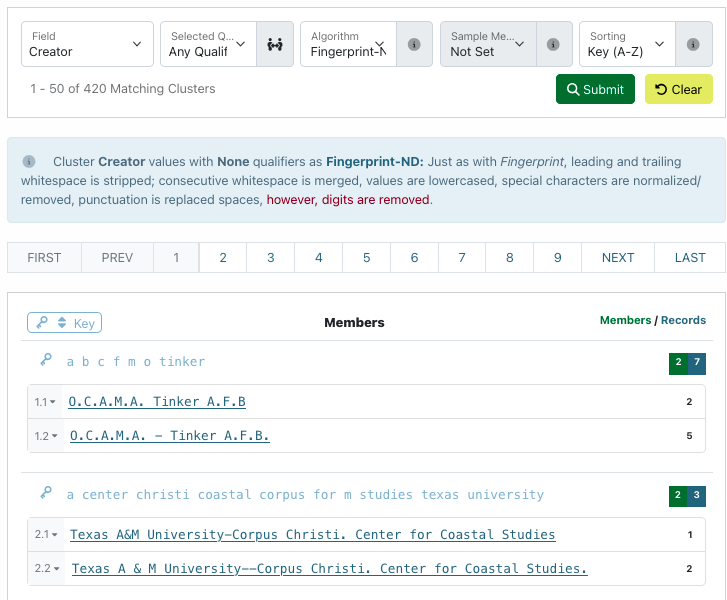
The cluster tool helps to find values with different formatting or that do not fit a particular expected pattern, e.g.:
Near-identical names with different spacing or punctuation
Extremely long (or short) subject or title values
Identifiers that do not fit a standard pattern used in a collection
Step 2: Find Records
If you’re using the Dashboard filters, click on the appropriate filter (e.g., “Invalid Dates”)
From the tools, click a value (in cluster or facet) or a numeric value (in count) to open a Dashboard search meeting those criteria
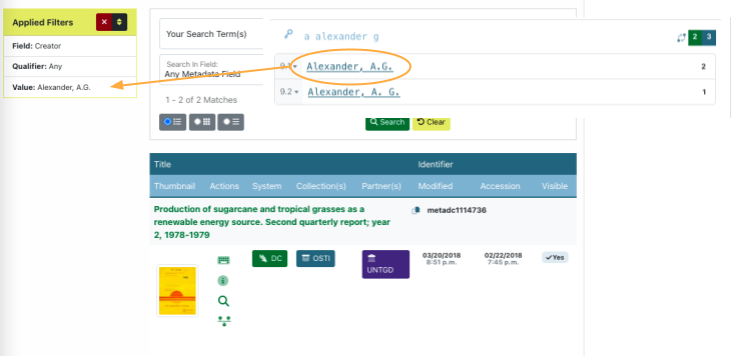
Step 3: Edit Records
For each record on the Dashboard list for an identified issue, click “Edit” to open the editing form and change, add, or remove the value (depending on what is appropriate)
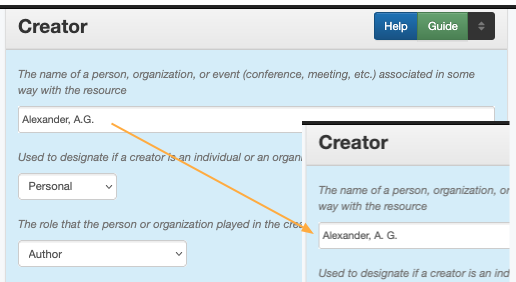
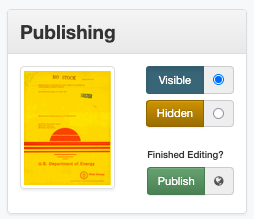
After fixing the issue, click the “publish” button at right to save the record (do not change the visibility of the record unless instructed to do so)
Step 4: Repeat
After a particular value has been changed, the lists in the Dashboard and tools will update (note that values in cluster cache and will take longer to reflect changes)
Find a new issue or value that needs to be changed and follow the same steps
Note that some departments or projects may already have lists of corrections that need to be made; other suggestions may also be found here